
When is the best time to buy a cheap train ticket? Part 1

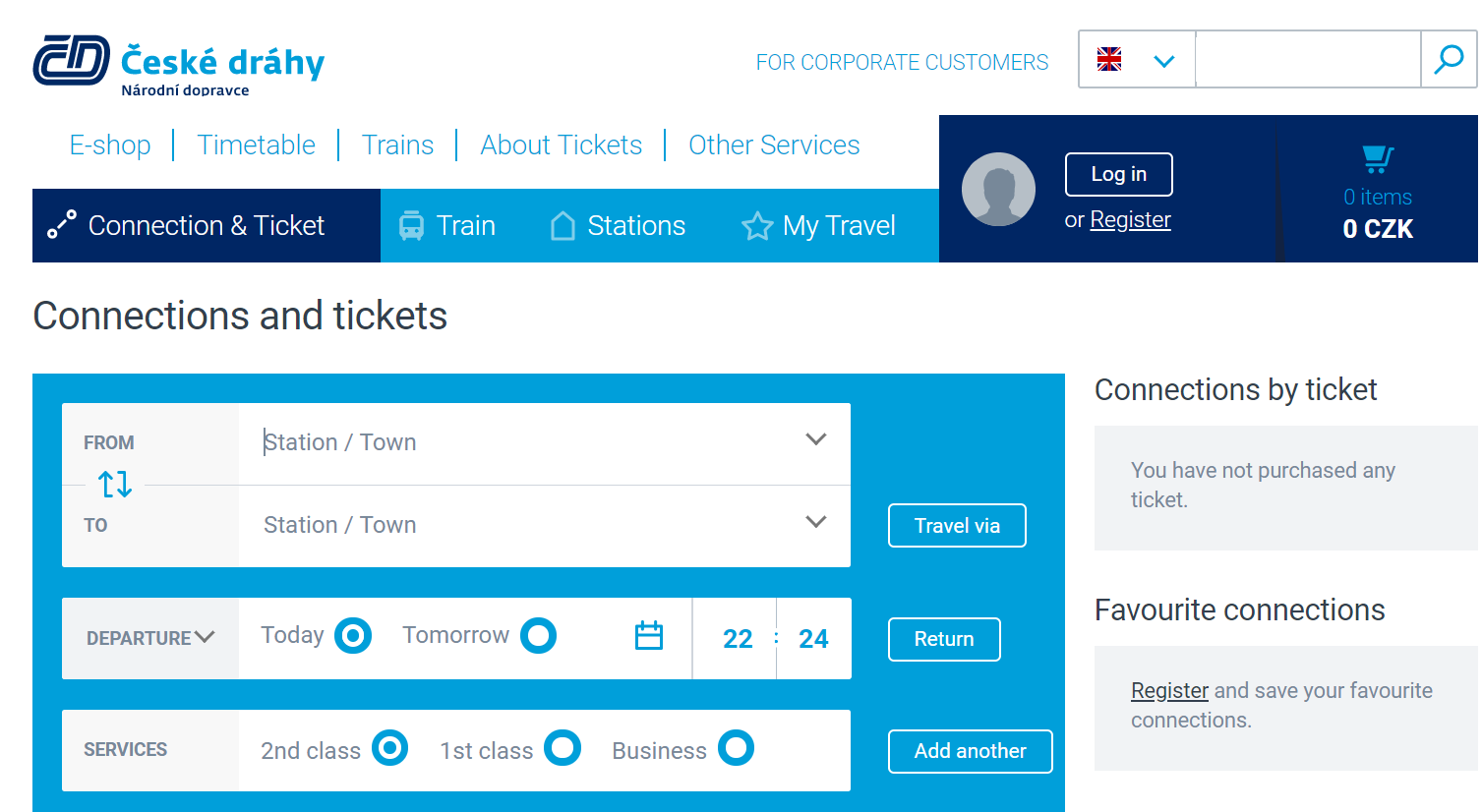
Picture taken from the Czech Railways website
Executive summary
Intro
The goal of the project is to know when the best time is to buy a train ticket from Prague to Vienna with Czech Railways in Spring 2019.
The project has two parts:
- Data collection
- Data analysis
This article presents the Python code for the first part - Data collection
Problem
I need to get data to perform an analysis of the cheapest train journeys with Czech Railways from Prague to Vienna in Spring 2019.
Solution
A custom Python scraping script using Selenium generating a csv file.
Result
Obtained data related to departure time and price for about 90 days from the date the script was run.
Challenges
- Xpath elements on the webpage might change over time, the references will not work
- Suboptimal scraper construction (possibly overusing the sleep() function)
Code
First, we need to install and import the packages we will be using.
We need to install Selenium, since it is used to mimic the user browsing the site, by launching Anaconda Prompt and typing “pip install selenium”.
Then, we need import the packages necessary for the scraping and data transformation.
#import packages
from selenium import webdriver
from selenium.webdriver.common.action_chains import ActionChains
import datetime
import pandas as pd
from time import sleep
from selenium.webdriver.common.keys import Keys
from datetime import timedelta
After the import, we need to start the headless browser and load the website:
You will need to download the Chrome driver and place it into the same directory as the Python script
#Path to my Chrome Profile
driver = webdriver.Chrome('chromedriver.exe')

#Load CD.cz website
driver.get('https://www.cd.cz/spojeni-a-jizdenka/api-hp/')
Let us input the arrival and departure station into the respective fields
#set departure and arrival station
departure_station = driver.find_element_by_xpath('//*[@id="fromto"]/div/div[1]/div[1]/div/input[1]')
departure_station.send_keys("Praha hl.n.")

arrival_station = driver.find_element_by_xpath('//*[@id="fromto"]/div/div[2]/div[1]/div/input[1]')
arrival_station.send_keys("Wien Hbf")
The next step is to input the current time
#Click on the time field
timepicker = driver.find_element_by_xpath('//*[@id="dateTime"]/div/div[1]/div[1]/div[1]/table/tbody/tr/td[1]/div/input')
driver.execute_script("arguments[0].click();", timepicker)

#Input current time into the time field
actions = ActionChains(driver)
hours = datetime.datetime.now().strftime("%H")
minutes = datetime.datetime.now().strftime("%M")
actions.send_keys(hours + minutes )
actions.perform()

#Submit the current time
hotovo = driver.find_element_by_xpath('//*[@id="timeChanger"]/div/div[2]/div/div[2]/div[2]/button')
driver.execute_script("arguments[0].click();", hotovo)
Then we choose only direct connections, since they are the fastest on this route:
#Filter direct connections only
parametry = driver.find_element_by_xpath('//*[@id="connectionsearchbox"]/div[16]/a')
driver.execute_script("arguments[0].click();", parametry)

checkbox = driver.find_element_by_xpath('//*[@id="connectionParamsModal"]/div/div[2]/div/div/div[2]/div[1]/label/span[1]')
driver.execute_script("arguments[0].click();", checkbox)

hotovo_checkbox = driver.find_element_by_xpath('//*[@id="connectionParamsModal"]/div/div[2]/div/div/div[8]/button')
driver.execute_script("arguments[0].click();", hotovo_checkbox)
And submit the search parameters:
#Search for train connections with set parameters
vyhledat = driver.find_element_by_xpath('//*[@id="connectionsearchbox"]/div[16]/button')
driver.execute_script("arguments[0].click();", vyhledat)

#if this is not present, the script will not work
driver.implicitly_wait(10)
Now, we will come to the actual scraping. We define a function that extracts the values from the html webpage based on XPATH refernces
#Set the number of the last div with the date and price information
for_end_number = 38

#Define a function to scrape date, time, and price, including data cleaning
def getValues(for_end, xpath_start, xpath_end, parameter):
    values = []
    for i in range(7,for_end_number,1):
        if parameter == 'time':
            time = driver.find_element_by_xpath(xpath_start + str(i) + xpath_end).text
            values.append(time)
        elif parameter == 'date':
            time = driver.find_element_by_xpath(xpath_start + str(i) + xpath_end).text.split()[1]
            values.append(time)
        elif parameter == 'price':
            try:
                time = driver.find_element_by_xpath(xpath_start + str(i) + xpath_end).get_attribute('title')
                values.append(time[:-3])
            except:
                values.append('0')
                pass
    return values
With the extraction function defined, we can proceed to run the extraction function on the elements we want to scrape.
The code is quite clumsy, since there is a for loop that extracts information until it encounters a date that is 90 days larger than the date of running the script.
We are using 90 days, since this is the maximum time period for which we can see the price in the future.
Inside the loop, there is a nested for loop which paginates the results.
#Define date_merged - the last date and time that was found on the website
date_merged = datetime.datetime(2016,5,10,12,30,0,0)
#Date future represents the most distant time in the future for which the price is still available (empirically figured out)
date_future = (datetime.datetime.now() + timedelta(days=90))
#The while runs until the last date and time from the previous while is greater than the current date and time
while date_merged < date_future:
    #Load the max amount of connections, five elements on page
    i=0
    while i <6:
        nextpg = driver.find_element_by_css_selector('a.boxed.link-more')
        driver.execute_script("arguments[0].click();", nextpg)
        i = i+1
        #Without sleep, stale element problem appears
        sleep(1)
        print(i)


   #get data using getValues()

    departures = getValues(for_end_number,'//*[@id="connectionlistanchor"]/div[',']/div/div/div[2]/p[2]/span[2]','time')
    arrivals = getValues(for_end_number,'//*[@id="connectionlistanchor"]/div[',']/div/div/div[2]/p[4]/span[2]','time')
    departure_dates = getValues(for_end_number,'//*[@id="connectionlistanchor"]/div[',']/div/div/div[2]/p[2]/span[3]','date')
    arrival_dates = getValues(for_end_number,'//*[@id="connectionlistanchor"]/div[',']/div/div/div[2]/p[4]/span[3]','date')
    prices = getValues(for_end_number,'//*[@id="connectionlistanchor"]/div[',']/div/div/div[1]/a','price')

    #Create time stamps to identify the date of query in the dataframe
    now = datetime.datetime.now().strftime("%d.%m.%Y %H:%M:%S")
    #The div ids begin with the number 7
    time_stamps = [now] * (for_end_number - 7)

    data = pd.DataFrame(
        {'Time of query': time_stamps,
         'Departure date': departure_dates,
         'Departure time': departures,
         'Arrival date': arrival_dates,
         'Arrival time': arrivals,
         'Price': prices
        })


    #Return back to the search page
    step_back = driver.find_element_by_xpath('//*[@id="customnav"]/a')
    driver.execute_script("arguments[0].click();", step_back)

    #Input the last date from the previous page, time is ignored because the trains leave every hour
    calendar = driver.find_element_by_xpath('//*[@id="dateTime"]/div/div[1]/div[1]/div[2]/a/i')
    driver.execute_script("arguments[0].click();", calendar)
    actions = ActionChains(driver)
    date_field = driver.find_element_by_xpath('//*[@id="calendarModal"]/div/div[2]/div/div[1]/div/div[1]/input')
    actions.click(date_field)
    actions.send_keys(Keys.CONTROL + "a")
    actions.send_keys(Keys.CONTROL)
    actions.send_keys(Keys.DELETE)
    actions.perform()
    sleep(1)
    actions.send_keys(departure_dates[-1])
    actions.send_keys(Keys.TAB)
    actions.perform()
    sleep(1)
    #Submit the time
    hotovo = driver.find_element_by_xpath('//*[@id="calendarModal"]/div/div[2]/div/div[1]/div/div[4]/button')
    driver.execute_script("arguments[0].click();", hotovo)

    sleep(1)
    #Submit the form
    hotovo = driver.find_element_by_xpath('//*[@id="connectionsearchbox"]/div[16]/button')
    driver.execute_script("arguments[0].click();", hotovo)

    #Replace the last date with actual values, dummy value used before the while start
    date_merged = datetime.datetime.strptime((departure_dates[-1] + ' ' + departures[-1]), "%d.%m.%Y %H:%M")
We have created a dictionary with the desired data that we convert to csv and analyze in a later part.
data.to_csv('TicketPrices.csv', encoding='utf-8', mode='a', header=False, index=False)